CRChair and I have been enjoying playing around with Apple's new FIND MY FRIENDS app, which lets you track the location of friends and family (but only with their express permission, revokable at any time). One detail that has been confusing us is the fact that every time he uses FIND MY FRIENDS, it forces him to provide his Apple ID password, where everytime I use it, it drops me right into the app without any friction. What's the difference?
It turns out FIND MY FRIENDS forces you to log in every time for security reasons. (This way a stranger can't pick up your phone and start stalking your friends.) If you have a passcode to unlock your iPhone, FIND MY FRIENDS requires no additional validation. But if you DO NOT have a passcode to unlock your iPhone, it will ask you for your Apple ID password every time.
There you go. To turn on passcodes, go to SETTINGS, GENERAL, Passcode Lock.
Monday, October 31, 2011
iOS 5 Tips: FIND MY FRIENDS makes you log in one way or another
Sunday, October 30, 2011
iOS 5 Tips: Location Services May Drain Your Battery
One of the surprising issues coming out of iOS 5 and the iPhone 4S is batteries which drain very quickly. Some users are even reporting drains of 10% per 15 minutes in certain conditions. For some cases, this has come down to identifiable issues like corrupt contacts. But a general trend of short battery life has come out.
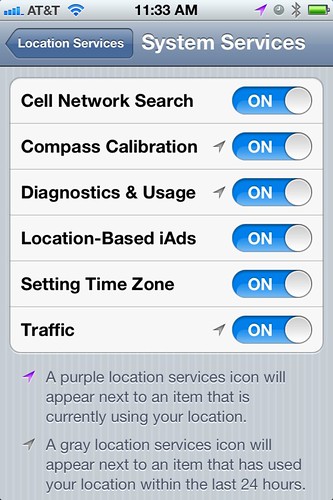
Now, engineers have found a common thread - Location Services. It appears that in some circumstances, the "Setting Time Zone" function comes on when it is not needed, and can come on constantly. GPS drains significant power, when it is constantly on.
TIP: WORK AROUND THE BATTERY-DRAIN BUG IN IOS 5This is not the ONLY reason that iOS 5 can have worse battery life than iOS 4. Be sure to check and confirm you are not overusing Notifications, Find My Friends, or other power-hungry features if you try this fix and are still getting poor battery life.
To turn off the "Setting Time Zone" function to maximize battery life:
1. Open the SETTINGS app
2. Tap the "Location Services" option
3. Scroll all the way to the bottom and tap the "System Services" function
4. "Setting Time Zone" is 5th from the top. Slide it to OFF
Keep in mind that this means if you DO travel, you will need to set your time zone manually. But that may be a small price to pay for an extra 2 to 4 hours of battery life between charges.
Saturday, October 29, 2011
iOS 5 Tips: Selecting which device for FIND MY FRIENDS
One of cool new Apps available for iOS 5 is Find My Friends. It allows you to share your location with a friend (or coworker) for either a short time, or for all time. I can see it being invaluable for families, and used it myself when my brother went to pick up a friend at the airport - it allowed me to know how much longer until they got back.
But what if you have multiple iDevices (as many of us do). How does Find My Friends know whether to use your iPad, iPhone, or iPod Touch for your location? The answer is a bit buried, but pretty simple.
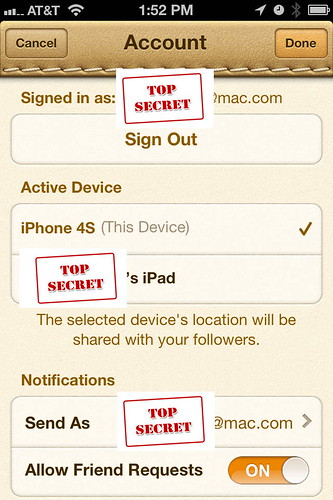
TIP: SELECT WHICH DEVICE IS USED BY FIND MY FRIENDSPlease note, this also means you can change the selection at will. Going to buy a special present for the girlfriend, but don't want her knowing that you're stopping at a Wedding Band Jewelers? Set Find My Friends to use your iPad, and leave it at the office. Switch it back afterwards, and she is none the wiser. (Although, note that this kind of trickery, if discovered, could require some explaining!)
1. Open the FIND MY FRIENDS app
2. Tap on the ME option to bring up your own position
3. Tap the [ACCOUNT] button in the upper right corner
4. You will be presented with a list of your active devices. Select any one (I recommend your iPhone, if you have one, as it is the most likely to be with you and NOT be left at home).
Friday, October 28, 2011
iOS 5 Tips: All of Siri's commands
Today's post is not one of my own creations/discoveries, but something I have had a lot of people asking about. Siri - available only on the iPhone 4S for now - is a virtual assistant, who can respond to voice commands to do a large number of functions for you. But she can't do everything. So, what kinds of things can she do? What kinds of things will she respond to? CydiaHelp.Com has compiled a useful list of which I excerpt only a tiny portion below.
Requesting remindersThe search capabilities of Google, Yelp, and Wolfram Alpha are the biggest wildcards. This is a window in a whole world of information. For instance, if you say "I have a flat tire", then Siri will look up towing services in the area. Or if you ask "What is the capital of Uganda?" it will look that up using Wolfram Alpha. I recommend playing a bit with it, until you get comfortable with the kinds of info she has available to you.
Remind me to call mom
Remind me to call my mom when I get home
Remember to take an umbrella
Remind me take my medicine at 6am tomorrow
Remind me to pick up flowers when I leave here
Remind me when I leave to call Jason
Remind me to finish the report by 6
Checking Stocks
What’s Apple’s stock price?
What is Apple’s PE ratio?
What did Yahoo close at today?
How is the Nikkei doing?
How are the markets doing?
What is the Dow at?
Checking the Forecast
What’s the weather for today?
What’s the weather for tomorrow?
Will it rain in Cupertino this week?
Check next week’s forecast for Burlington
What’s the forecast for this evening?
How’s the weather in Tampa right now?
Also, keep in mind Siri's language parsing is server-side, so Apple may be able to add new functions in between releases of iOS.
Thursday, October 27, 2011
iOS 5 Tips: Getting all iMessages on BOTH your iPhone AND iPad (or iPod Touch)
One of my biggest frustrations on upgrading to iOS 5 was finding out that - unlike the demos that Apple had up - iMessages sent to my iPhone 4S were not appearing on my iPad, and vice versa. A major attraction of iOS 5 is the ability to have all of your messaging on all of your devices, and yet the promise remained unfulfilled. But several hours of trial and error finally worked it out. Here's hoping this TIP saves you the trouble that I had. (This is especially likely if you were a .Mac user who upgraded to Mobile Me, but kept both your Me.Com and Mac.Com addresses.)
TIP: HOW TO SYNC iMESSAGE ACROSS MULTIPLE DEVICESImportant Note: This will ONLY sync iMessages between your iPhone and other iDevices. Text Messages will not sync.
As a default, iMessage on your iPad always goes back to your Apple ID. But as a default, iMessage on your iPhone always goes back to your phone number (to aid in making the SMS/iMessage divide seamless). The key here is to sync up settings on both devices to use your Apple ID for all iMessage functions. (And if you have multiple Apple IDs, to make sure the SAME ONE is selected on both devices.)
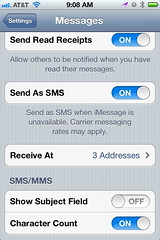
STEP 1: Go to the SETTINGS app on your iPhone, iPod Touch, or iPad, and select MESSAGES (scroll down, it is under Safari and above Music in iOS 5.0)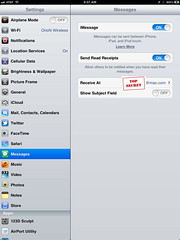
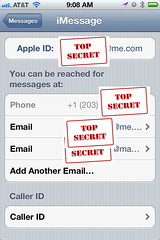
STEP 2: Tap the RECEIVE AT setting (which will show one more Address count on your iPhone than on your iPad/iPod Touch). This will bring up a list of the addresses at which you can receive iMessages.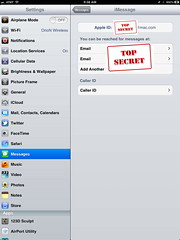
STEP 3: Make sure all Apple IDs are set up on all of your devices. Tap "Add Another E-mail" if you have multiple and one is missing on any device. This will ensure that your device is "listening for" any messages coming into any of those channels. (You can not add a phone number to your iPod Touch or iPad. Sorry.)
You will now be able to receive messages on all devices sent to any of your designated e-mails/Apple IDs.
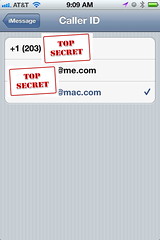
STEP 4: Tap the CALLER ID Setting. This will bring up a list of addresses you can send out to other iMessage devices to say "This is me, reply to this." On your iPhone, your phone number is probably selected.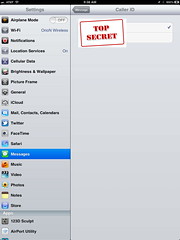
STEP 5: Select the SAME e-mail address on both your iPhone and your iPad/iPod Touch. Do not leave it set to the phone number.
You will now tell all future iMessage friends to reply back to your chosen e-mail. This will cause them to message you in a way that both your iPhone and your iPad/iPod Touch can understand.
Wednesday, October 26, 2011
iOS 5 Tips: Location Based Reminders & Microsoft Do Not Mix!
While we were being victimized by the infamous hacker, I was busy upgrading my iDevices to iOS 5, and ran across some small issues that it is likely Mod-Blog readers have also (or will also) face. Thus, our return will begin with a small series of IOS 5 TIPS, based on my experience.
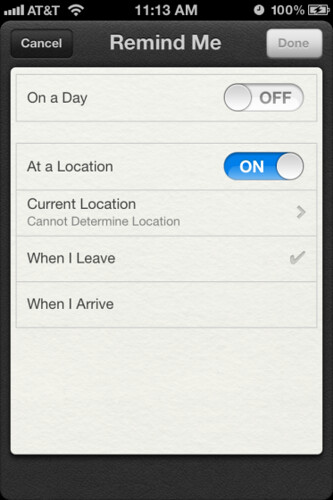
TIP: LOCATION-BASED REMINDERS AND MICROSOFT EXCHANGE DO NOT MIX!Also, remember that Location-based alerts are only compatible with the iPhone 4 or iPhone 4S. If you have an iPad, or older iPhone, reminders can only be time-based.
One of the big new features of iOS 5 is system-based reminders, which can be either time or location-based. Locations based reminders are great for keying you to do a certain things "when I get to work" or "the next time I go out". They can even be set up via Siri, if you have an iPhone 4S.
But when I got to iOS 5, I found no way to set a location-based reminder. Every attempt to set one up via touch or via Siri failed entirely. I wasn't even given the option. And yet, there was no indication of an error or failure.
Well, it turns out the issue was the fact that I was syncing my Reminders (as Tasks) to my work's Microsoft Exchange server. This is automatic if you have an Exchange e-mail account set up. But Exchange is incompatible with iOS5's method of storing geographical information. This is mentioned in Apple's documentation, but buried deep and hard to find.
The simple solution? Turn off syncing of Reminders with the Exchange server. Sync with iCloud instead. Once that is done, the option for location-based reminders will "magically" appear.
Tuesday, October 25, 2011
Mod-Blog is back!!!
 Well, it was a long, dark night. But the sun is rising again, and it is the start of a new day!
For those who missed it, about a month ago, Mod-Blog was hacked by some who claimed to be a foreign political activist. He claimed to want to raise awareness of certain international issues... but all he really did was insert Google AdSense links all over the page, and collect the pennies that rolled in. We were not the only ones impacted - there were literally dozens of blogs stolen.
But after a month of waiting patiently for Google's infamous customer service, we're up. We now hope to return to our irregularly scheduled programming.
